Creating Content with AI: Images, Videos and Presentations
17 İyul 2026·Updated: ·⏱ ≈11 min·👁 262 views
Contents
- 🎨 What Does Multimodal Mean for Content Creation?
- 🖼️ How Do You Create Images with AI?
- 🎬 How Do You Create Videos with AI?
- 📊 How Do You Turn a Long Document into a Presentation?
- 🔍 How Do You Assess Visual Content?
- 💡 Show Your Idea When Words Fall Short
- ⚠️ The Most Important Part: Where Should You Draw the Line?
- 🖌️ How Do You Edit an Existing Image?
- 🚀 Creating Content with AI: A Practical Workflow
- ❓ Frequently Asked Questions
- Conclusion
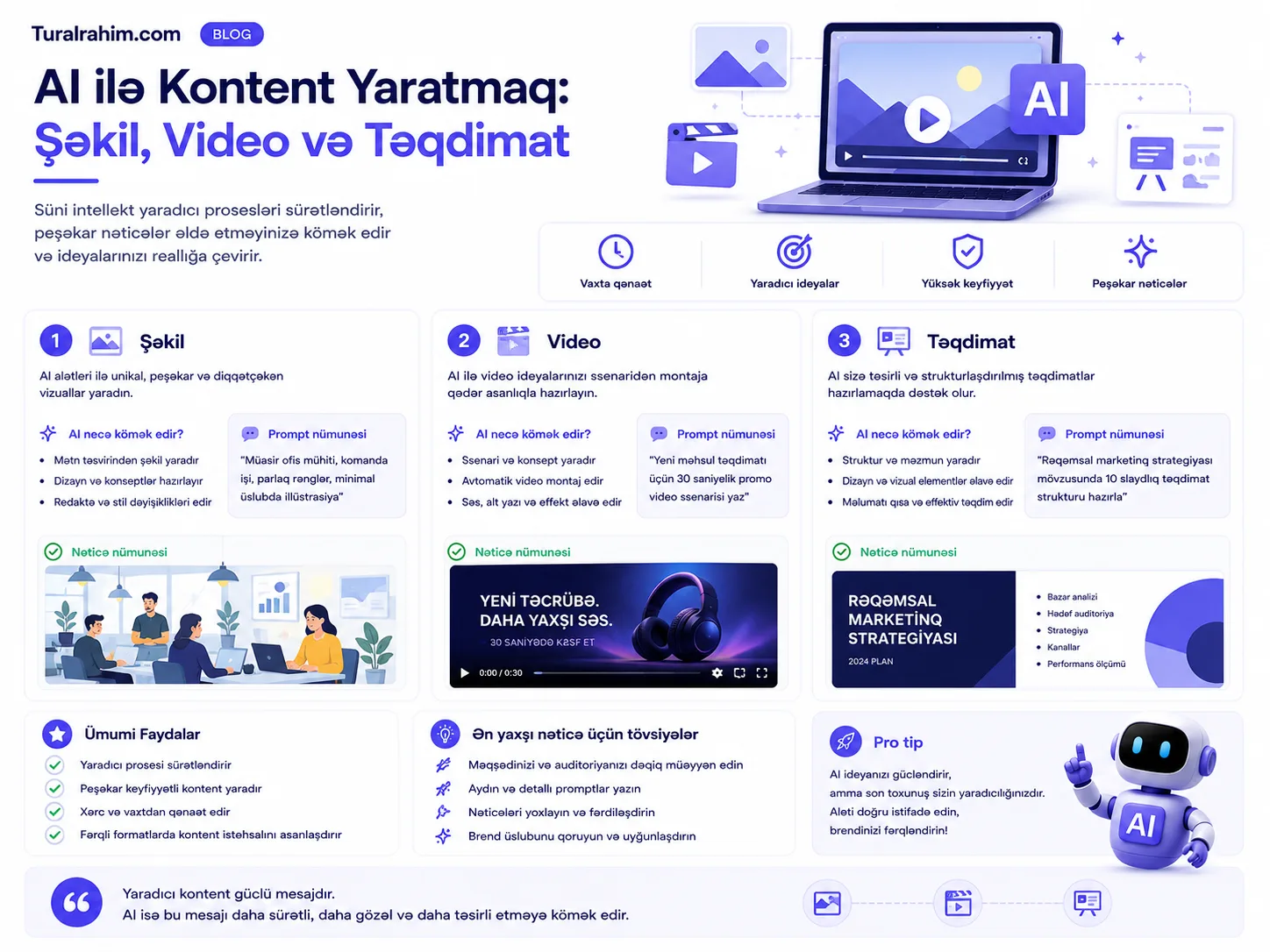
You are not a designer, you do not know how to edit video, and putting presentations together frustrates you. Yet all of these tasks are part of your job. AI fills that gap: turn a text description into an image, animate a still image, or transform a long document into a polished presentation in minutes. Creating content with AI starts with turning your ideas into clear instructions for images, videos and presentations.
This is known as multimodal capability: working with different types of information. For example, you can submit a prompt in one format (text) and receive a result in another (an image or video). In this article, I will walk you through all three formats (images, videos and presentations) with practical examples. I will also draw an important line: where AI-generated content is appropriate and where it is not.
This article is part of the 🧐 What is artificial intelligence (AI)? is the practical section of the guide.
🎨 What Does Multimodal Mean for Content Creation?
Simply put, AI can now work with more than text. You can give it one type of content and get another in return.
Enter text → get an image.
Provide an image → get a video.
Upload an audio file → get a transcript.
Provide several images → get a new image that combines them.
Here is what that means for you: you do not need to hire a specialist every time you want to turn an idea into a different format. Marketing materials, website images, a video for your team or a presentation for a client: you can create them all yourself.
For small businesses and independent professionals in particular, this is a major shift. Previously, every visual task meant paying someone or waiting days for a result. Now, you can go from idea to finished content in minutes, giving you more room to experiment and explore different options.
The golden rule: When AI creates visuals, your role goes beyond commissioning the work. You become the director . The more precise your description, the closer the result will be to what you have in mind. "Create a nice image" gives the model very little direction.
🖼️ How Do You Create Images with AI?
This is the feature you are likely to use most. Yet the results often fall short of expectations. One reason is a vague description.
Remember the context window from the second article? I explained that many image models start with random "noise" and turn it into an image that matches your description. The less direction you give, the more decisions the model makes for itself, often taking the result further from what you had in mind.
5 Elements of a Good Image Prompt
Subject: What should appear in the image? Be specific: "steaming black coffee in a ceramic cup" rather than simply "a cup of coffee".
Style: Photography? Illustration? 3D? Minimalist? If you do not specify, the model will choose for you.
Lighting and mood: "Warm morning light", "cool studio lighting", "shadowy and dramatic".
Colour: Specify the background colour and main tones. If you have brand colours, include them.
Format: Square (Instagram post), landscape (website banner), portrait (story).
Before and After
Weak: "Create an image for a furniture shop."
Strong: "Create a square image of a bright living room featuring a simple, modern wooden coffee table. Warm morning light should stream through the window. Colours: beige, white and light wood tones. Use a photorealistic style with a sense of depth. The room should feel tidy, warm and lived-in."
You can see the difference. The second prompt gives more than a request: it gives creative direction.
Refine the Image Step by Step
Do not settle for the first image. Refine it with follow-up instructions such as:
"Make the table a little bigger."
"Make the lighting warmer."
"Simplify the background. There are too many objects."
The model then uses the previous image as a starting point and tries to make your requested change. Check that other details have stayed consistent too.
Important: Check Text and Fingers
AI has become much better at placing text inside images , but it can still get letters wrong. Always check your logo and any wording that needs to be exact. If necessary, add them afterwards in design software. Hands, fingers and faces can also contain errors, so inspect them carefully.
Use a Reference Image
One of the most effective approaches is to give AI an image you like as a reference and ask it to "create something in this style". Showing what you mean often gives clearer direction than describing it in words.
For example, upload the image from your most successful post last year and say: "Create an image in this style, but with a winter theme." The model will broadly preserve the colours, mood and composition. There is one condition: explain what the reference is for: should it "match the colours" or "follow the composition"? These instructions produce different results.
🎬 How Do You Create Videos with AI?
This is one of the fastest-developing areas of AI. You can now animate a still image or even generate a short video from a text description.
The workflow usually looks like this:
Step 1: First, create an image using the approach above.
Step 2: Upload that image to a video tool and describe the movement: "The camera slowly moves towards the table, the light changes, and a curtain gently stirs in the background."
When writing a video prompt, specify three things: what moves, how the camera moves and the mood you want.
For example: "A coffee cup sits on a table. Steam rises slowly. The camera starts with a wide shot, then gradually moves closer to the cup. Morning light, with a calm, warm atmosphere." Clear instructions about the key details can bring the video closer to your vision because the model has less to guess.
AI video still has its limitations:
Individual generated clips are usually short (a few seconds).
Details can become distorted in long, complex scenes.
The best features are often available only on paid plans.
For now, AI video works well for short adverts, social media animations and product showcases . A full film still requires combining scenes, editing and additional work. This field is changing quickly.
📊 How Do You Turn a Long Document into a Presentation?
This may be the biggest time-saver in the article. Instead of spending hours building slides, you can quickly turn a long document into a first draft of a presentation.
"Turn the attached document into an 8-slide presentation. Audience: potential clients. Give each slide a short title and no more than 3 bullet points. Follow a logical sequence: problem → solution → result → call to action. Use simple language and avoid jargon."
You can then refine individual slides: "There is too much text on slide 3. Simplify it" or "Make the headings more compelling".
Many tools let you export the presentation as a PowerPoint file. You can also open that file in Google Slides and continue editing.
You can create different presentations for different audiences from the same document. First, ask for "a technical presentation for the team", then request "a sales presentation for a client" using that same source. The core information stays the same, but the emphasis, language and length change completely. Doing this manually would take hours.
🔍 How Do You Assess Visual Content?
AI can create content and critique it too. This is a lesser-known but very useful capability.
You have a finished flyer, poster or advertising image, and something feels wrong, but you cannot pinpoint the problem. AI can help you put that feeling into words. Use these two steps:
Step 1: "What design principles should a flyer for a small business follow?"
Step 2: "Now assess the attached flyer against those principles. Our goal is to generate enquiries from small business owners. Identify its weaknesses and suggest specific improvements."
Both steps matter: the first asks AI to establish the assessment criteria. Without criteria, you may get an unhelpful response such as "It looks great!"
Then use AI to help you share the feedback with your designer: "Write a brief, polite note summarising this feedback for the designer." This turns the feeling that "something is wrong" into a clear, actionable brief .
💡 Show Your Idea When Words Fall Short
Sometimes you have an idea in mind but struggle to explain it. Telling your team, designer or client "I want something like this" can be difficult because everyone imagines something different.
AI is a powerful tool here: you can make your idea visible in minutes.
For example, you have an idea for new product packaging. Before briefing a designer, ask AI to create 3–4 different options. Show them to the designer and say: "I want something between these two." Now everyone has a shared visual reference, making the designer's job much easier.
This highlights an often overlooked role for AI: as well as creating finished content, it can help you communicate an idea. The packaging AI generates may not be ready for production, but it can be a very useful starting point for discussion.
Prototyping: See It Before You Spend
The same principle applies to larger projects. Before investing in a new concept, use AI to explore several versions of how it could look. Do not like the result? Simply change the prompt, without a large expense or much time lost.
This is particularly valuable for small businesses. Previously, testing an idea meant paying a designer. Now, you can test ten ideas and invest in just one.
⚠️ The Most Important Part: Where Should You Draw the Line?
Now for the serious part. Creating visuals with AI is easy. That also makes it easy to misuse them.
Keep the Facts Accurate
If you are turning a report into an infographic, always checkthat AI has copied the figures correctly. It can miswrite numbers or invent information. Visuals look convincing, which makes an incorrect figure in a polished chart all the more dangerous.
Do Not Mislead People
It is technically easy to use AI to create a realistic "customer photo", a "before and after" image or a graphic featuring a fabricated review. Presenting these as genuine is deceptive. A customer may eventually discover the truth and lose trust in your business for good. Trust is your most valuable asset in marketing. Do not put it at risk for the sake of one image.
Respect Copyright
Images that imitate real brand logos, recognisable characters or a particular artist's style can create legal problems. Create your own original visuals.
Stay on Brand
Not every AI-generated image will suit your brand. Colours, style and mood should all follow your brand guidelines. An attractive image that feels out of place can weaken your brand.
The golden rule: If you present something as factual, whether a figure, a before-and-after comparison or a customer's experience, double-check that AI depicts it accurately. Explore freely with creative visuals, and take particular care with visuals that need to reflect reality.
🖌️ How Do You Edit an Existing Image?
AI can create images from scratch and edit images you already have. Editing can often be even more useful than generating something from scratch because you are working with real source material.
Here is what you can do:
Remove unwanted objects: If there is an unwanted object in the background of your product photo, say: "Remove the glass in the background of this image."
Change the background: "Place the product on a white background." This is particularly useful for e-commerce.
Extend the image: Your image is square, but you need a landscape format. AI can extend the scene beyond the original edges.
Change the style: "Give this image warmer tones with more green."
This lets you refresh older product photos without arranging another shoot each time, or create several versions of one image in different formats.
There is a limit
Do not edit a real product photo so heavily that the item a customer receives no longer matches the image. Changing it to an unrealistic colour, exaggerating its size or hiding a defect misleads the customer. Editing should improve the presentation without distorting the truth.
🚀 Creating Content with AI: A Practical Workflow
Let us bring it all together. Suppose you are preparing a social media campaign for a new service:
1. Ask AI for 3 visual concepts, starting with ideas before generating images.
2. Choose one and generate an image from a detailed description.
3. Refine the image step by step until you are happy with it.
4. Use that image to create a short video or animation.
5. Review the result yourself, then ask AI to take the role of a customer for additional feedback.
6. Add your logo and final wording yourself at the end.
A few years ago, this could have required a designer, a video editor and a week of work. Now, one person can do it in a day. Designers still have a valuable role: their time can shift from routine template work to tasks that demand more creativity.
❓ Frequently Asked Questions
Are AI-generated images free?
Many tools let you generate images on their free plans, but usage limits apply. Video and higher-quality output often require payment. I have covered what each tool offers the comparison article in a separate article.
Can I use AI-generated images commercially?
Most tools allow this, but their terms vary and are updated from time to time. For substantial commercial projects, read the tool's current terms carefully. This is an important step in avoiding problems later.
Why does text in AI-generated images come out wrong?
Rendering text accurately within an image can still be difficult for the model. This does not mean it cannot recognise letters . Newer models have improved considerably, but always check logos, slogans and prices. Add them afterwards if necessary.
Which tool is best for creating images?
This changes frequently, and different tools excel at different tasks. The best approach is to try the same prompt in several tools and compare the results. For video, you can also try the Google Veo features in Gemini.
Does creating presentations with AI really save time?
Yes, but set realistic expectations. AI gives you an initial presentation framework : structure, headings, bullet points and a logical flow. The remaining work, checking exact figures, applying your branding and making final adjustments, is your responsibility and the most important part. You can skip much of the initial build and move straight to refining the presentation. A day's work may shrink to an hour, but the work does not disappear.
My images look different every time. How can I keep them consistent?
This is part of how the model works: each result includes some randomness. Two things can help: save an image you like straight away, as you may not be able to recreate it exactly, and use it as a reference when you want to continue in the same style. Some tools also offer a "seed" setting, but keeping the seed alone does not guarantee an identical result.
Will AI replace designers?
It is difficult to say for certain, but AI is already changing the designer's role. Simple, repetitive tasks, such as social media templates and basic banners, can increasingly be automated. Human designers still have a role in complex branding, strategy and work that requires creative judgement. AI can be a powerful tool for them.
Conclusion
AI has made visual content creation accessible to more people. That does not mean everyone will create good visuals. The difference still comes down to your vision and creative judgement.
AI has handed you the brush. You still paint the picture: you decide what looks good, what suits your brand and what represents the truth.
Try one thing this week: use AI to create an image for a social media post from scratch. Start with a weak prompt, such as "product photo", then refine it step by step like a director: style, lighting, colour and composition. Comparing your first and final results will bring everything in this article into focus. With visual work, seeing the difference is more convincing than reading about it.
Next step: working with numbers: Data Analysis with AI in Google Sheets
If you need to bring your channels and budget together in one plan, my media planning and strategy service explains how I approach this work.
Topic: Artificial Intelligence: posts in this topic →
About the author
Tural Rəhimov
Digital Marketing Manager: UM Azerbaijan
Digital marketing manager at Universal McCann (UM Azerbaijan). Experienced in Google Ads, Meta Ads, TikTok Ads and media planning. I help brands grow online.
More about me →Need digital marketing support for your business?
Let's talk: I can help with everything from strategy to ad management.