How to Set Up a Google Ads Account: A Step-by-Step Guide (with Images)
19 İyul 2026·Updated: ·⏱ ≈11 min·👁 114 views

Contents
- What you need to know before setting up a Google Ads account
- Step 1: Sign up for Google Ads and enter your business details
- Step 2: Set up your first campaign
- Step 3: Bidding strategy and budget
- Step 4: Payment and pausing the test campaign
- What to do after your first campaign
- Navigating the Google Ads dashboard
- Keeping campaigns organised
- Common mistakes beginners make
- Frequently asked questions (FAQ)
- Conclusion: learn by doing
You’ve learned the theory. Now let’s put it into practice. In this guide, we show you, with screenshots, how to set up your own Google Ads account step by step and navigate between sections in the dashboard. Once your account is set up, you can launch real campaigns. If your business or agency already has an active Google Ads account, you can skip straight to the navigation section.
This article is part of the Google Search campaign basics is a continuation of the guide.
What you need to know before setting up a Google Ads account
Get a few things ready before you start so the process goes smoothly. First, a Google account: Google Adsyou’ll use it to sign in. Second, your business name and website URL: Google uses information from your site to help you set up your first campaign. Third, a payment method: a card or another available option that matches your country, currency and payment settings. Fourth, and most importantly, a general idea of your advertising goal: are you looking for sales, leads or traffic? This decision will determine how you set up your campaign.
One important reminder: in this guide, we’ll set up a TEST campaign and pause it straight away. You can create an account without creating a campaign, so you don’t have to spend money on ads just to learn. But be careful: if you don’t pause the test campaign, you may incur costs once the ad is approved and starts running. We’ll make sure to pause it at the end.
Step 1: Sign up for Google Ads and enter your business details
To get started, go to ads.google.com and click «Start Now». If you’re already signed in to a Google account, for example through Gmail, you’ll move automatically to the next step. Otherwise, sign in to your Google account or create a new one. Once you’re signed in, Google will ask for your business name. It will also ask for your website URL to help you set up your first campaign. For now, enter your homepage URL and click «Next».
Google may then ask for more information about your business and offer to connect related accounts: your phone number, YouTube channel, mobile app and Google Business Profile account. If you have these, add them here to save time when creating your ads later. If not, you can skip this step.
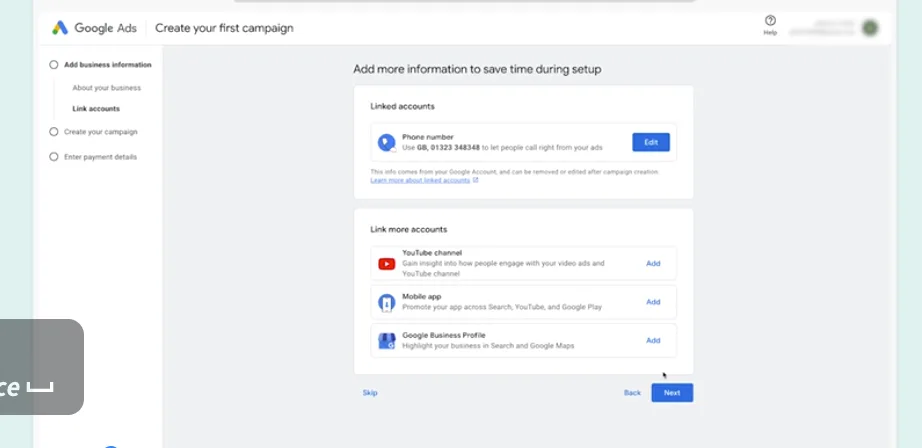
Image: The Google Ads sign-up screen for adding account details and linked accounts (phone, YouTube, mobile app and Google Business Profile).
Step 2: Set up your first campaign
Next, Google asks what you want your advertising to achieve. In this guide, we’ll create our first test campaign using Performance Max; the steps may differ for other campaign types. For now, choose a suitable option, such as «page views», and click «Next». Google may suggest adding search themes (words and phrases people might use when looking for your products) to help identify who should see your ads. This is optional. Next, choose the locations and languages for your ads.
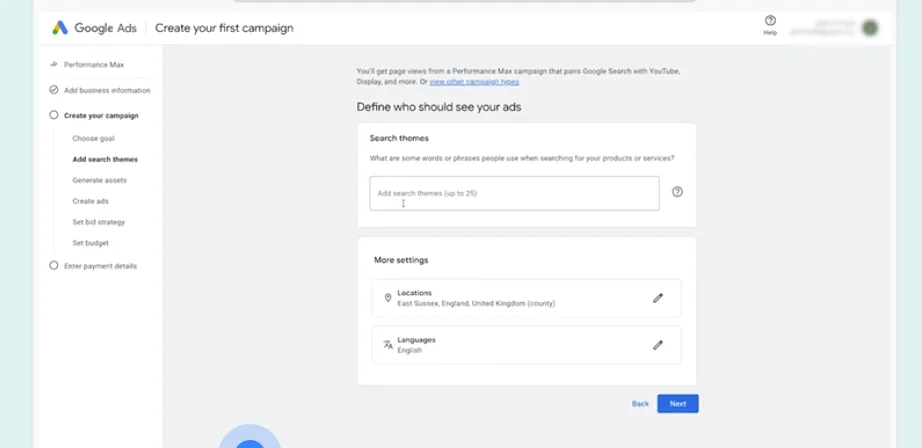
Image: The first campaign setup screen: «Define who should see your ads», search themes, and the location and language settings.
You can speed up the ad creation process using Google’s generative AI tools. You’ll see a list of the products and services you’re advertising, along with a description of what makes your business stand out. This content guides Google’s generative AI tools. You can edit the text to tailor the AI suggestions to your campaign. AI may fill in many fields for you. You can select assets taken from your website or upload new ones from your computer. You’ll also need to choose a suitable logo asset.
For a real campaign, it’s worth taking the time at this stage to refine how your ad looks and what it says, as ad quality affects both CTR and your position in the auction. Since this is only a test campaign, you can use Google’s suggestions for now. When adding search themes, think practically: choose words your customers would actually use, such as your product name or category, rather than Google’s own jargon. Relevant search themes can help Google find the right audience.
Step 3: Bidding strategy and budget
Once your ad is ready, set your bidding strategy. Since this is a test campaign, you can proceed with a conversion-focused bidding strategy and click «Next». The final step in creating your campaign is to set your budget. Remember: you’ll need to pause the campaign shortly. Choose the lowest recommended amount, or enter a lower budget, then click «Next».
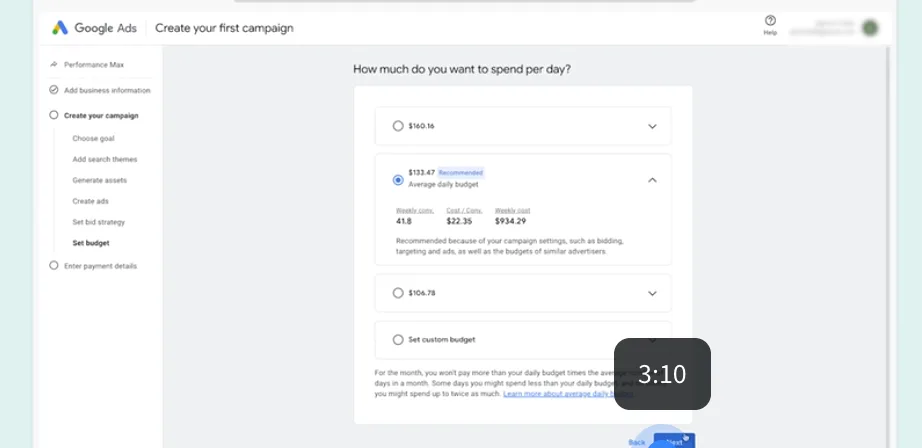
Image: The daily budget selection screen: «How much do you want to spend per day?», the recommended average daily budget and alternative options.
Step 4: Payment and pausing the test campaign
Now it’s time to enter your payment details. Choose an existing payment profile or create a new one. The account type is set to «Organization» by default, but you can choose «Individual» if it’s available in your country and suits your legal status. If you create a new payment profile, you’ll need to enter your full billing address. Then choose an available payment method that matches your country, currency and payment settings, and enter your details.
You’ll then see a confirmation screen. IMPORTANT: don’t stop here! You must pause the test campaign you’ve created straight away. Otherwise, you may incur costs once the ad is approved and starts running. Go to the Google Ads dashboard and open the overview screen. Open the campaign list from the «Campaigns» menu, click the status icon to the left of the campaign name, then choose «Pause» from the menu that appears. Check that the status is «Paused». If the ad has already run, you’ll still need to pay any costs incurred.
A note about account type: «Organization» is selected by default. This may be suitable for a registered business, including a sole proprietor operating under a registered trade name. «Individual» is intended for personal advertising needs and some individual activities that are not registered as businesses. Your choice affects tax documents and advertiser verification. When you create a payment profile, you’re usually the primary billing contact. You can change your contact details using the available editing options.
What to do after your first campaign
Once you’ve paused the test campaign, your account is ready and you can start setting up real campaigns. But first, take a few preparatory steps. Start by setting up conversion tracking. This lets you measure important actions on your website, such as purchases, form submissions and calls, and is configured in the «Goals» section of the dashboard. Without tracking, you can’t accurately measure the results your ads bring in.
Second, plan your campaign structure. Before moving on to a real Search campaign, map out which product categories need separate campaigns, which ad groups each campaign will contain and which keywords will go in each ad group. Performance Max uses asset groups instead. Planning ahead is much easier than restructuring your account later. Third, start with a small budget and monitor results for a few weeks. Then increase the budgets of campaigns that are delivering results.
Navigating the Google Ads dashboard
Once your account is ready, let’s look at how to move between sections in the dashboard. First, an important note: Google Ads is constantly evolving. The Google team improves its features and expands its AI capabilities. This means your account interface may look a little different from how it did a few months ago. The main sections remain familiar, and guidance in the dashboard will help you find your way around.
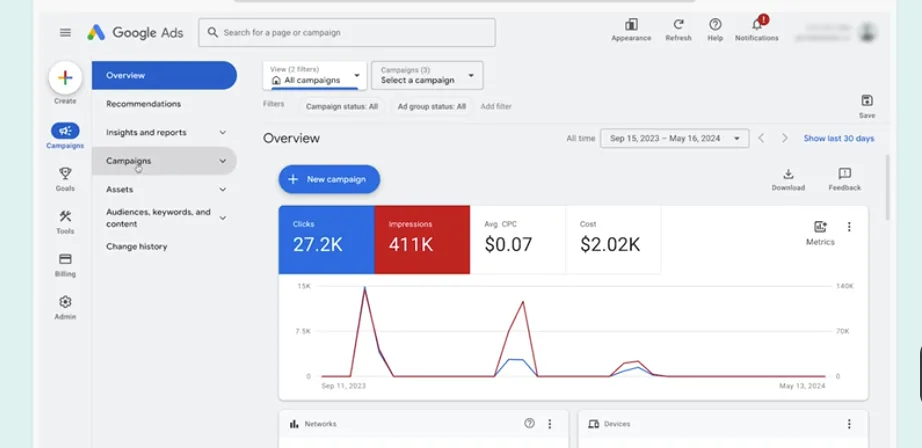
Image: The Google Ads dashboard overview screen: the menu on the left (Campaigns, Goals, Tools, Billing, Admin), key metrics at the top (Clicks, Impressions, Avg. CPC, Cost) and a results chart.
The dashboard is organised as follows: the menu is on the left, and the main area changes depending on what you select. Important messages may appear at the top, such as a warning that a campaign isn’t running. The Overview page gives you a general picture of your campaigns and their results, with information about recent campaigns and keywords below. Think of it as your dashboard: a place to quickly check your ads and budget. When all campaigns are selected, you’ll see their combined results.
To view a specific campaign, select it from the campaign selector. Only its data will be shown. You can also open a specific ad group for a closer look. «Insights and reports» provides detailed information about your ads’ performance, and you can customise reports to suit your needs. Change the date range in reports to choose the period covered by the data.
The other sections in the menu are «Goals», for conversion goals and measurement settings; «Tools», for tools to help manage campaigns; «Billing», for your account’s payment details; and «Admin», for account settings and user access permissions. To create a new campaign, click «New campaign» or the «+» icon on the left.
Tip: you’ll find helpful explanations in different parts of the dashboard. Click the question marks (?) or hover over labels to see more information. You can also contact a Google specialist through the support options available for your account. The best way to learn is to set up your own account and explore the options and settings.
Keeping campaigns organised
As you launch more campaigns in your account, keeping them organised becomes increasingly important. A well-organised account makes it easier to track results, allocate your budget effectively and spot problems quickly. Here are a few practical tips:
- Group campaigns logically by product line, goal or audience. That way, it’s clear at a glance what each campaign is for.
- Create a clear naming system, for example «Running | Sales | AZ». Consistent names make it easier to find what you’re looking for in a large account.
- In Search campaigns, organise ad groups around specific themes. Don’t put very different products in the same ad group, as this can reduce ad relevance.
- Check results regularly. Use the Overview and Insights and reports sections to see which campaigns are delivering results.
- Pause or improve campaigns that aren’t delivering results, and direct your budget towards those that are.
A well-organised structure isn’t just about appearance; it directly affects results. In a well-organised account, you can see exactly which ads, keywords and budgets are delivering results, then base your decisions on that.
Common mistakes beginners make
People new to Google Ads often make the same mistakes. Knowing what to watch out for can save you time and money:
- Forgetting to pause the test campaign: this can lead to additional costs. Always pause the test campaign after setting up your account.
- Putting all keywords in one ad group: this reduces ad relevance and can lead to inefficient spending.
- Choosing the wrong goal: if you want to build awareness but choose a sales goal, or vice versa, you’ll steer Google’s optimisation in the wrong direction.
- Not keeping an eye on your budget: Google’s recommended budget may not suit you. Set an amount you can afford.
- Not measuring results: if you don’t track performance once your ads start running, you won’t know what’s delivering results.
Frequently asked questions (FAQ)
How do I set up a Google Ads account?
Go to ads.google.com, click «Start Now», sign in to your Google account and add your business details. Then set up your first campaign or choose the option to create an account without a campaign.
Why should I pause the test campaign?
If you don’t pause the test campaign created during account setup, you may incur costs once the ad is approved and starts running.
Why might the Google Ads dashboard look different?
Google Ads is constantly evolving, and its AI capabilities are developing too. As a result, the interface may change, while the main sections remain familiar.
What does the Overview screen show?
It gives you an overview of the selected campaigns’ results, including clicks, impressions, CPC, cost and charts. It’s the main summary section of the dashboard.
Do I need payment details to set up an account?
You need to complete your payment settings to run ads. Pausing the test campaign won’t erase any costs already incurred. A temporary amount may be held on your card, or an initial payment may be required for verification.
For account type, should I choose «organization» or «individual»?
Choose the option that matches your legal status and the rules in your country. Organization may suit a registered business; Individual may suit personal advertising and some unregistered individual activities.
How can I keep campaigns organised?
Group campaigns by product and goal, create a clear naming system, organise ad groups around specific themes in Search campaigns, and check results regularly.
What should I use for search themes?
Use words and phrases customers would enter when looking for your products, such as product names and categories. Search themes are optional in Performance Max, but they can help find the right audience.
What is conversion tracking?
It’s a system for measuring important actions on your website, such as purchases, form submissions and calls. Set it up in the «Goals» section of the dashboard to measure your ads’ results accurately.
Where can I get help with Google Ads?
Click the question marks (?) in the dashboard or hover over labels to see explanations. You can also use the Google support options available for your account.
Can I change a campaign later?
Yes. You can change the budget, ads and targeting, as well as keywords in Search campaigns. Some settings have limitations. You can also pause a campaign and restart it later.
What’s the difference between Overview and Insights and reports?
Overview gives you a general picture of your campaigns. Insights and reports provides more detailed performance information and reports you can customise to suit your needs.
Conclusion: learn by doing
Setting up a Google Ads account may look like a long process at first, but once you’ve done it, you’ll see that the steps are straightforward: sign-up → business details → campaign → budget → payment → pause the test campaign. The dashboard lets you manage campaigns, reports, tools and payments in one place. Remember that Google Ads is constantly evolving: the interface may change, but the main sections remain familiar.
The best way to learn is by doing. Set up your own account (and remember to pause the test campaign), explore the menu sections, read the explanations next to the question marks and look into Google’s suggestions. This hands-on experience will help you understand the theory in more depth and manage your account confidently.
One final tip: be patient and take it step by step. Google Ads is a broad platform, and you can’t learn everything in a day. Follow the steps in this guide to set up your account, get familiar with the dashboard and explore settings in your paused test campaign. Over time, you can move on to more detailed topics such as keyword strategy, bid management and reporting. But it all starts here, with setting up your account and getting to know the interface. Use the screenshots above as a guide, keeping in mind that your interface may look different.
Congratulations! You now know how to set up your own Google Ads account and navigate between sections in the dashboard. Your next step is to open your account, explore the options and discover for yourself what Google Ads can do.
👉 Main guide: What is Google Ads?
Topic: Google Ads: posts in this topic →

About the author
Tural Rəhimov
Digital Marketing Manager: UM Azerbaijan
Digital marketing manager at Universal McCann (UM Azerbaijan). Experienced in Google Ads, Meta Ads, TikTok Ads and media planning. I help brands grow online.
More about me →Need digital marketing support for your business?
Let's talk: I can help with everything from strategy to ad management.