How to Set Up a Google Ads Account? Step-by-Step Guide (with Pictures)
19 İyul 2026·👁 7 views
You've learned the theory — let's go into practice now. In this post, we show you step-by-step screenshots of how to open your own Google Ads account and navigate in the dashboard. You can set up your own account and then run real promotions. If you already have an active Google Ads account for a business or agency, you can go directly to the navigation section.
This post Google Search campaign basics a continuation of its guide.
What you need to know before setting up an account
Before you open your account, prepare a few things so the process goes smoothly. First, a Google account (Gmail) — Google Ads works on it. Second, the name of their business and the URL of their site — Google is looking at their site for help setting up the first campaign. Third, the payment method (credit/debit card, PayPal, or bank account). Fourth — most important — a general idea of the advertising goal: do you want sales, leads, or traffic? This decision then determines how the promotion will be set up.
One important warning: we're setting up a TEST campaign in this guide, and we'll stop it before it runs. That means it's not mandatory to open an account and spend money to learn. But be careful — if you don't stop the test campaign, the ad will run and take money out of your account once Google approves it. We'll make sure to do this step eventually.
Step 1: Registration and business information
To get started, visit ads.google.com and click “Start Now.” If you are already logged into a Google account (e.g. via Gmail), you are automatically taken to the next step. Otherwise, you'll need to log in to Google or create a new account. After check-in, Google asks for the business name. They also ask for the URL of their site — to help set up the first promotion; for now, type in the URL of the homepage and click “Next”.
Then Google asks for additional information about your account: your phone number, YouTube channel, mobile app, and Google Business Profile. If they are, add them here-it saves time for later use in their advertising. Or skip this step.
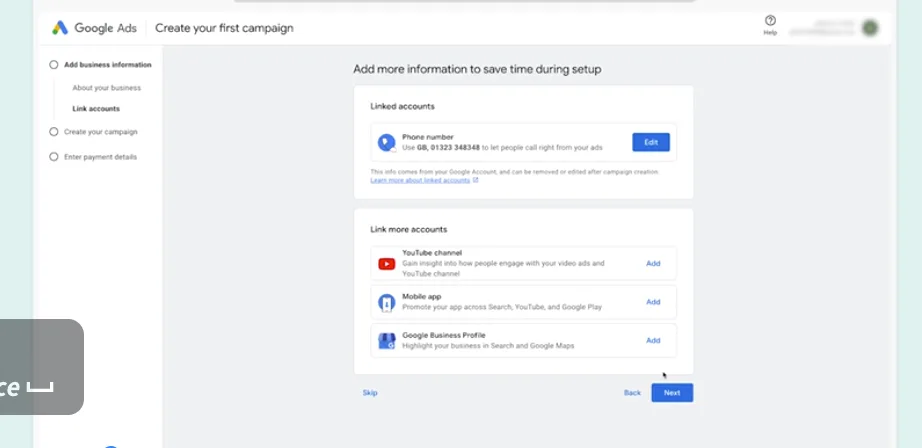
Figure: Add account information and linked accounts (phone, YouTube, mobile app, Google Business Profile) screen in Google Ads registration.
Step 2: Setting up your first promotion
Next, Google asks for the primary advertising objective (this is due to the first test campaign that was part of account creation). For now, continue with the recommended option (e.g. «page views») and click «Next». Now we're creating the first campaign. Google wants to determine who will see their ad first — so you give them search themes (the words and phrases people will use when they search for their product). Then you select the location and language in which their ad will be displayed.
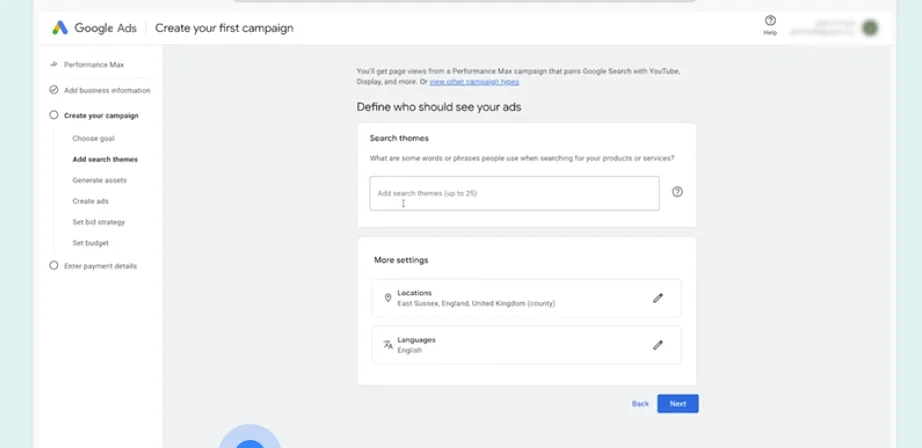
Figure: Setting up the first campaign screen: «Define who should see your ads» — search themes (keyword themes), location (Locations) and language (Languages) settings.
Reklam yaratma addımında Google-un generativ AI alətlərindən istifadə edərək prosesi sürətləndirə bilərsən. Reklam etdiyin məhsul/xidmətlərin siyahısını və biznesini unikal edən təsviri görəcəksən — bu məzmun Google-un generativ AI alətlərini yönləndirir. Redaktə edərək AI təkliflərini kampaniyanın ehtiyaclarına uyğunlaşdıra bilərsən. AI bir çox sahəni əvvəlcədən doldurur; saytından çəkilmiş asset-ləri seçə və ya kompüterindən yeniləri yükləyə bilərsən. Logo üçün asset seçmək tələb olunur.
Real kampaniyada bu mərhələdə vaxt ayırıb reklamın görünüşünü və mesajını dəqiqləşdirməyə dəyər — çünki reklamın keyfiyyəti həm klik nisbətinə, həm də auksiondakı mövqeyinə təsir edir. Amma bu sadəcə test kampaniyası olduğu üçün hələlik Google-un təkliflərini olduğu kimi qəbul edə bilərsən. Search themes verərkən isə praktik ol: müştərinin real olaraq yazacağı sözləri düşün (məsələn məhsulun adı, kateqoriyası), Google-un öz jarqonunu deyil. Nə qədər dəqiq search themes versən, reklamın bir o qədər uyğun auditoriyaya çatar.
Step 3: Bid strategy and budget
Once the ad is ready, you set the bid strategy. Since this is a test campaign, you can continue with the bid strategy aimed at conversion and click “Next”. The last step of creating a campaign is to budget. Don't worry — in a little while, you'll stop the promotion before it runs. Select the lowest offer or enter a lower budget and click Next.
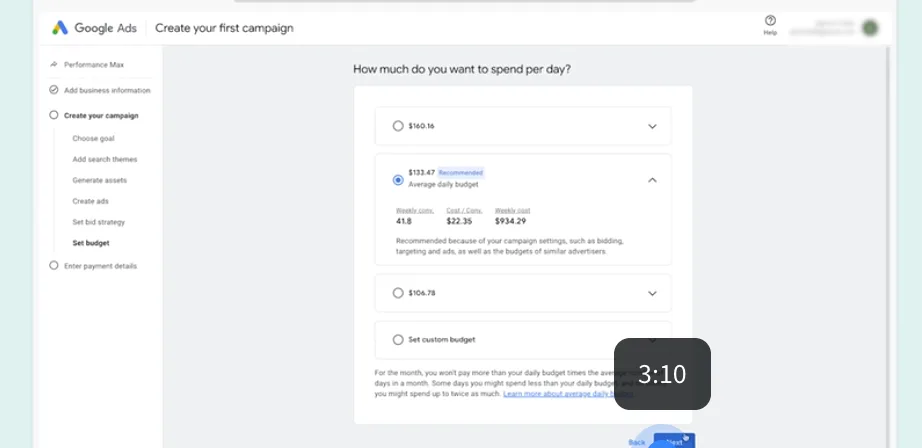
Figure: Daily budget selection screen: «How much do you want to spend per day?» — recommended average daily budget and alternative options.
Step 4: Stop payment and test promotion
Now it's time to enter your payment information. You will select an existing payment profile or create a new one. The account type is «organization» by default, but you can change it to «individual» if necessary for tax purposes in the country. If you create a new payment profile, you'll need to add the full billing address. Next, you enter the payment method you'll use (credit/debit card, PayPal, or bank account).
Bundan sonra təsdiq (confirmation) ekranını görəcəksən. VACİB: burada dayanma! Yaratdığın test kampaniyasını hələ dayandırmalısan. Əks halda Google reklamı yoxladıqdan sonra kampaniya işə düşəcək və hesabından pul çıxacaq. Sağ üstdəki Google Ads loqosuna klik edib panelə (dashboard) keç. İcmal ekranını görəcəksən. «Campaigns» menyusuna klik edib kampaniyalar siyahısını aç, sonra kampaniya adının solundakı dairəyə klik et və açılan menyudan «Pause» seç — beləcə heç bir büdcə xərclənməyəcək.
Account type barədə bir qeyd: default olaraq «organization» seçilir, yəni hesab bir təşkilat adına açılır. Əgər fərdi sahibkarsansa və ya ölkəndəki vergi qaydaları bunu tələb edirsə, «individual» seçə bilərsən. Bu seçim billing və vergi sənədlərinə təsir edir, ona görə biznesinin hüquqi statusuna uyğun olanı seç. Payment profile yaradanda primary billing contact default olaraq sən olursan, amma qələm (Pen) ikonuna klik edərək bunu dəyişə bilərsən — məsələn şirkətin mühasibini əlavə etmək istəsən.
What to do after your first promotion
Once you stop the test promotion, your account is ready and you can now set up real promotions. But hurry — take a few prepping steps first. First, set up conversion tracking: this allows you to measure important actions (purchase, form filling, call) that are taking place on the website and are done from the «Goals» section of the panel. Without tracking, you wouldn't know if their ad actually delivered results.
Second, plan the promotion structure. Before you jump into a real promotion, think on paper: which product categories will have a separate promotion, which name groups will each campaign have, and which keywords will each name group have? This scheduling is much easier than resetting an account later. Third, start with a small budget and track results for a few weeks-then increase the budget for running campaigns.
Navigation in the Google Ads pane
After the account is ready, let's study the navigation in the panel. First, an important note: Google Ads is a live product (living product) — the Google team is constantly optimizing the program. In the last year, it has been particularly focused on integrating AI capabilities. This means that your account may look a little different than a few months ago. But the underlying structure of the account remains the same and contains information that guides you.
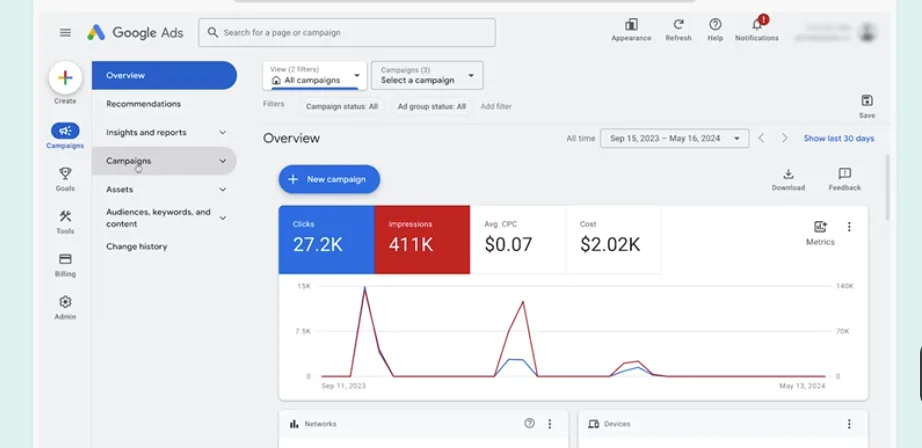
Figure: Overview of the Google Ads dashboard: menu on the left (Campaigns, Goals, Tools, Billing, Admin), main metrics above (Clicks, Impressions, Avg. CPC, cost) and performance schedule.
Panelin quruluşu belədir: sol tərəf menyudur, mərkəzi hissə isə seçiminə görə dəyişir. Yuxarıda vacib mesajlar görünə bilər (məsələn kampaniyanın işləmədiyi barədə xəbərdarlıq). Default landing səhifə — Overview (icmal) — sənə kampaniyalarının və onların performansının ümumi mənzərəsini verir; aşağıda son kampaniyalar və açar sözlər haqqında məlumat olur. Bunu panelin (dashboard) kimi düşün — reklamlarını və büdcəni tez yoxlaya biləcəyin yer. Bu görünüş bütün kampaniyaları birləşdirir.
If you want to look at a specific campaign, you select that promotion from the campaign tab above — only its details are visible; you can go deeper and view a specific name group. The section «Insights and reports» provides detailed information about the performance of its advertisements and can be customized. Each report has a date range (date window) above — you can change the period of the dataset displayed.
Other parts of the menu: «Goals» — site/app links to track conversions; «Tools» — auxiliary tools that work on campaigns; «Billing» — account payment information; «Admin» — to manage who can use their account and create ads. You click on the “New campaign” button or the “+” icon on the left to create a new promotion.
Hint: there's help along the way. You can get an explanation by clicking on the question marks (?) or hovering over the tags. You can even reach out to a Google specialist when the campaign is running. The best way to learn is to set up your own account and try all the options and settings.
Keeping promotions organized
Organizing is critical as you run multiple promotions on your account. A tidy account allows you to easily track performance, break a budget, and find issues quickly. Here are a few practical tips:
- Group promotions logically — by product line, goal, or audience. As such, it's clear at a glance what each campaign serves.
- Set up a clear naming system — such as «Running | Selling | AZ». Sequential names make navigating a large account easier.
- Keep ad groups on narrow themes — adding a very different product to a name group weakens the appeal of the ad.
- Regularly check performance — track which campaign is running using Overview and Insights and notifications.
- Stop or fix promotions that don't work-forward the budget only to those that do.
A neat structure isn't just aesthetics-it directly affects results. In a well-organized account, you see exactly which advertising, which keyword, and which budget are working, and you make decisions based on that.
Common mistakes of beginners
Those who start Google Ads often make the same mistakes. Knowing them in advance will save you money and time:
- Failure to stop the test promotion — the most common and most costly mistake. Be sure to pause the promotion after setting up an account.
- Throwing all keywords into a name group weakens advertising compliance and wastes budget.
- Choosing the wrong goal — asking for awareness and choosing a sales goal (or vice versa), Google's optimization goes the wrong way.
- No budget controls — Google's recommended budget isn't always right for you; set your own convenient amount.
- Don't measure results-you can't know what's working if you don't follow the metrics after the ad runs.
Frequently asked questions (FAQs)
How to open a Google Ads account?
visit ads.google.com, click «Start Now», log in to your Google account, add your business name and site, then set up your first campaign.
Why stop the test promotion?
Because if the test campaign created while setting up the account is not stopped, Google runs it after checking and withdraws money from its account.
Why might the Google Ads dashboard look different?
Because Google Ads is a live product and is constantly being updated (especially AI capabilities). The basic structure remains the same.
What does the overview screen show?
A snapshot of the performance of all their campaigns — clicks, hints, CPC, cost, and graphs. It is the main control center of the panel.
Do you need payment information to set up an account?
Yes, Google requires a payment method (card, PayPal, or bank account), but if you pause the test promotion, no amount will be charged.
Account type «organization» or “individual” option?
According to the legal status of its business and tax regulations in the country. The organization for the company can be tailored to the individual for the business owner.
How to keep promotions organized
Group by product/purpose, set up a clear naming system, save name groups across narrow themes, and check performance regularly.
What should search themes be?
Words and phrases that the customer will write realistically when they search for their product — product name, category. The more accurate the advertisement, the more relevant the audience.
What is conversion tracking?
A system that measures the important actions (purchase, form, call) taking place on its site. It is built from the «Goals» section of the panel; without it, there is no way of knowing if the advertisement is leading to results.
Where to get help in Google Ads?
By clicking on question marks (?) or hovering over tags throughout the account. You can also reach out to a Google specialist when the campaign is running.
Can I change the promotion later?
Yes. Budgets, keywords, ads, and targeting can all change at any time. It's also possible to pause and restart the promotion.
What is the difference between Overview and Insights and notifications?
Overview gives an overview of campaigns; Insights and reports provide more detailed, customizable reports of performance.
Finish: learn by practice
Setting up a Google Ads account can seem daunting at first, but once you go through the process, you see the logic is simple: signup → business info → campaign → budget → payment → (for testing) pause. And the panel lets you manage everything in one place — promotions, reports, tools, and billing. Don't forget that Google Ads is a living product: the interface may change, but this basic structure remains.
Best learning is practice. Open your own account (don't forget to pause the test campaign), click on each section in the menu, read the question marks, and explore Google's suggestions. This hands-on experience will give you a deep understanding that no theoretical material can provide.
Yekun bir tövsiyə: səbirli ol və addım-addım get. Google Ads geniş bir platformadır və hər şeyi bir gündə öyrənmək mümkün deyil. Bu bələdçidəki addımları izləyib hesabını qur, panelə alış və kiçik bir test kampaniyası ilə praktika et. Zamanla açar söz strategiyası, bid idarəsi və hesabatlar kimi daha dərin mövzulara keçəcəksən. Amma hər şey burada — hesabını qurub interfeysə yiyələnməklə — başlayır. Yuxarıdakı ekran görüntüləri sənə hər addımda nə gözlədiyini göstərir, ona görə onları bələdçi kimi istifadə et.
Congrats-you now know how to set up your own Google Ads account and navigate in the dashboard. The best next step is to open your account, click on all the options, and discover the amenities Google Ads has to offer.
👉 The main guide is: What are Google Ads

About the author
Tural Rəhimov
Digital Marketing Manager — UM Azerbaijan
Digital marketing manager at Universal McCann (UM Azerbaijan). Experienced in Google Ads, Meta Ads, TikTok Ads and media planning. I help brands grow online.
More about me →Need digital marketing support for your business?
Let's talk — I can help with everything from strategy to ad management.